Admin Panel
WeiLink includes a built-in web admin panel for managing bot sessions through a browser.
Getting Started
Open http://localhost:8080 in your browser. For CLI options, see CLI Reference.
Features
Dashboard
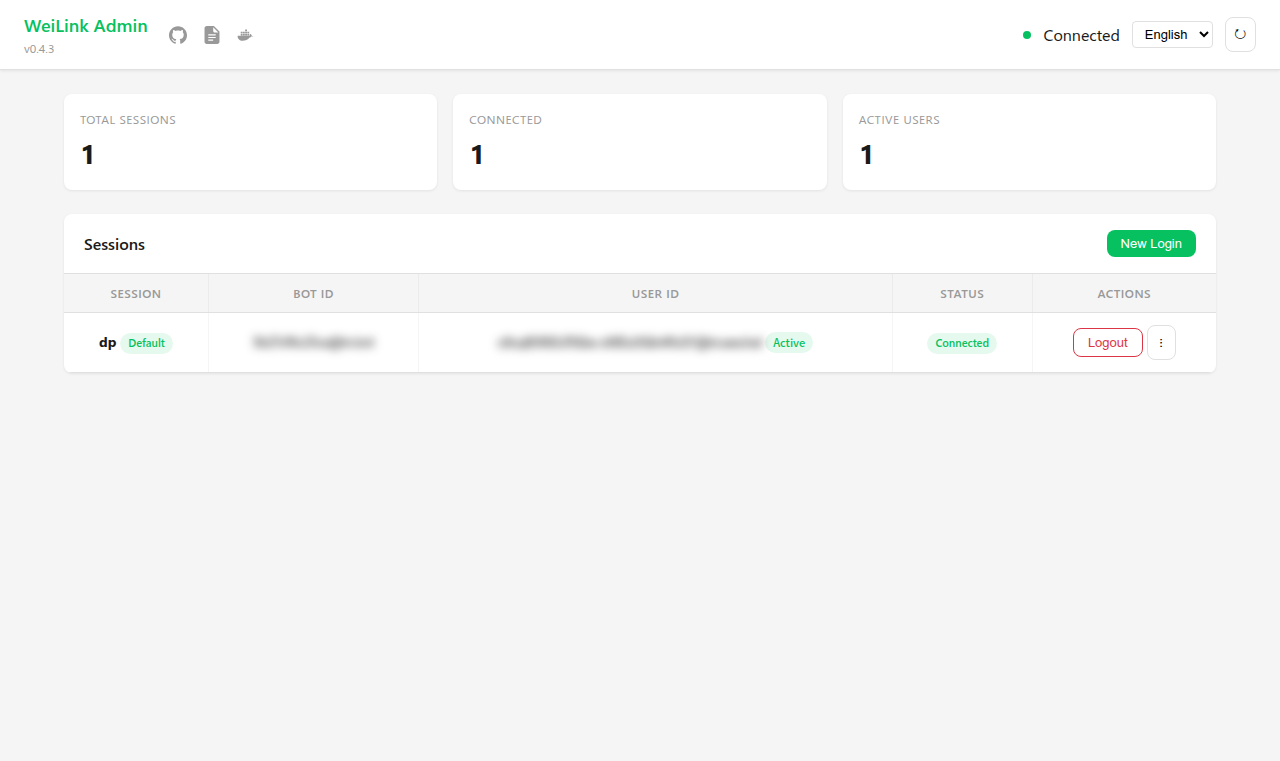
The main page shows an overview of all sessions:
- Total sessions, connected count, and active users
- Connection status indicator
Session Management
Each session row displays the session name, bot ID, connection status, and associated users. Available actions:
- Logout — Disconnect a session
- Rename — Change the session display name
- Set Default — Mark a session as the default for tools that don't specify a session name
QR Code Login
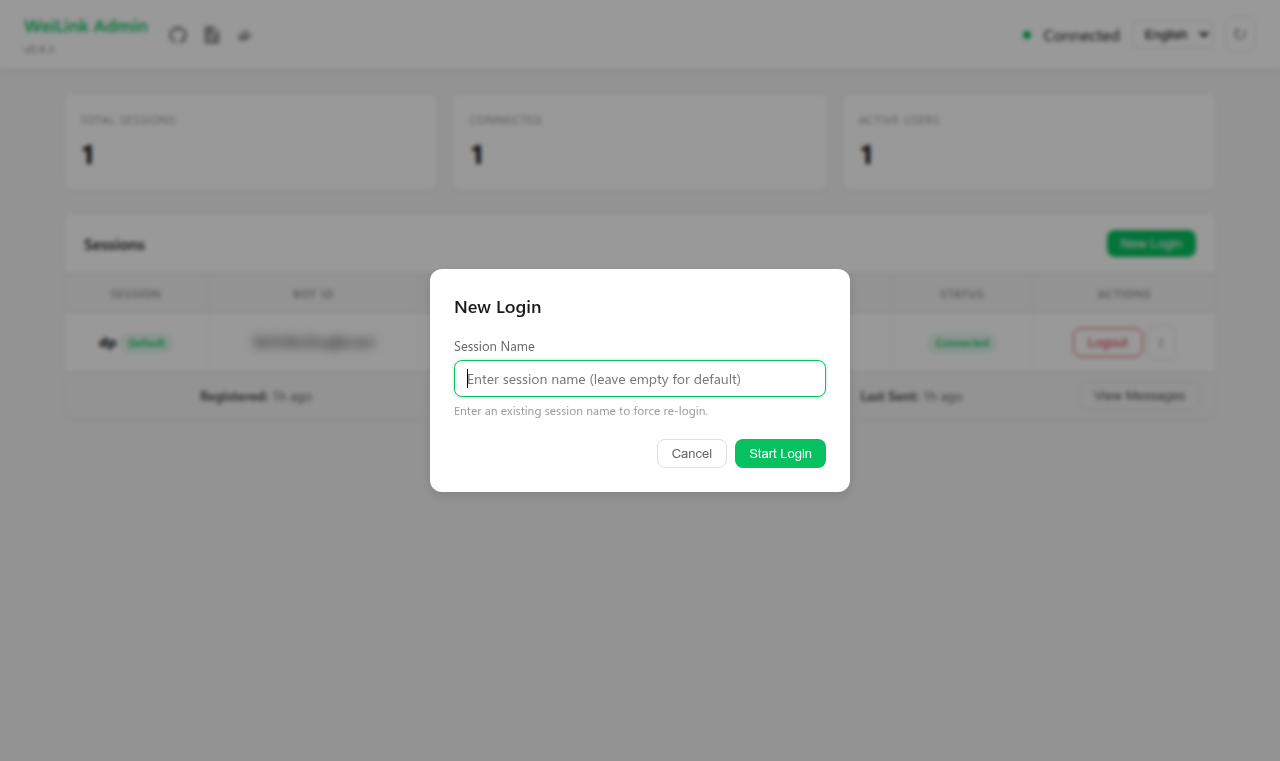
Click New Login to start a QR code login flow:
- Optionally enter a session name (or use the default)
- Scan the QR code with WeChat
- The session appears in the table once confirmed
QR codes expire after 5 minutes and can be refreshed manually.
User Tracking
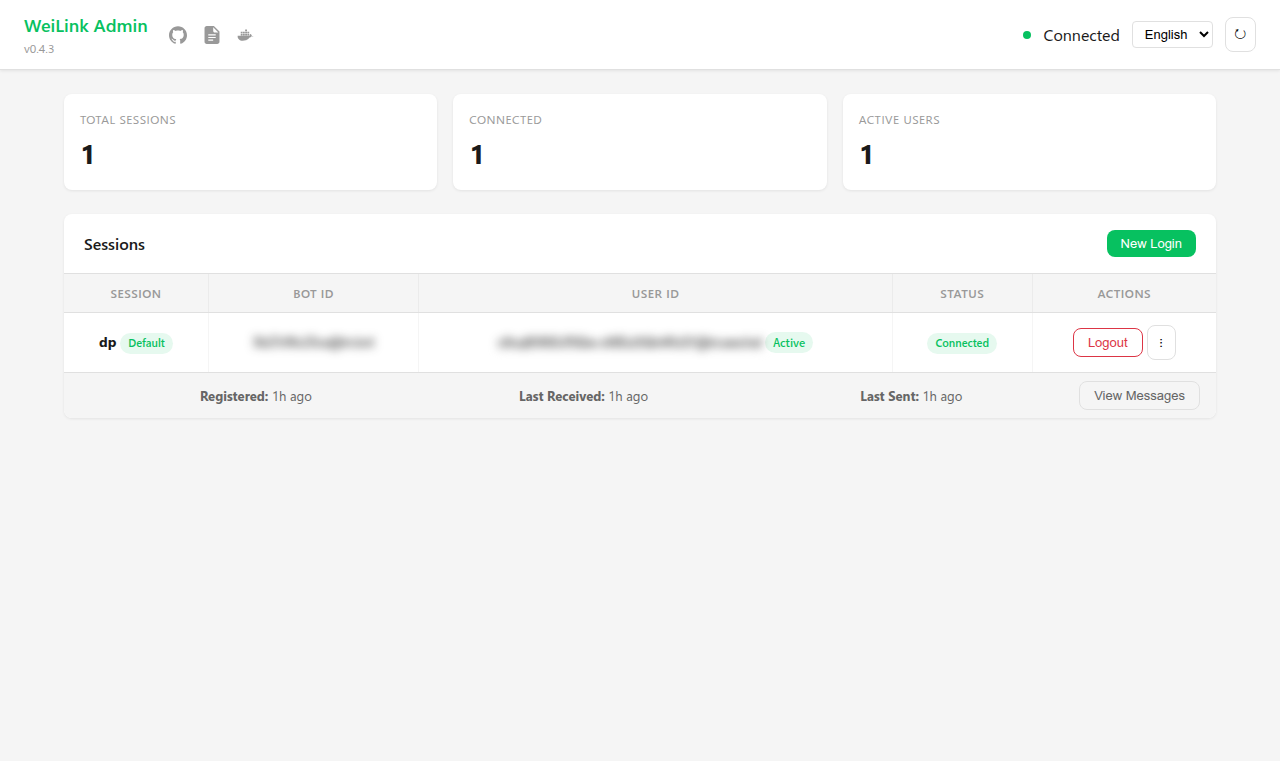
Expand a session row to see per-user details:
- First seen / last message received / last message sent timestamps
- Token status (active or expired after 24 hours of inactivity)
Message History
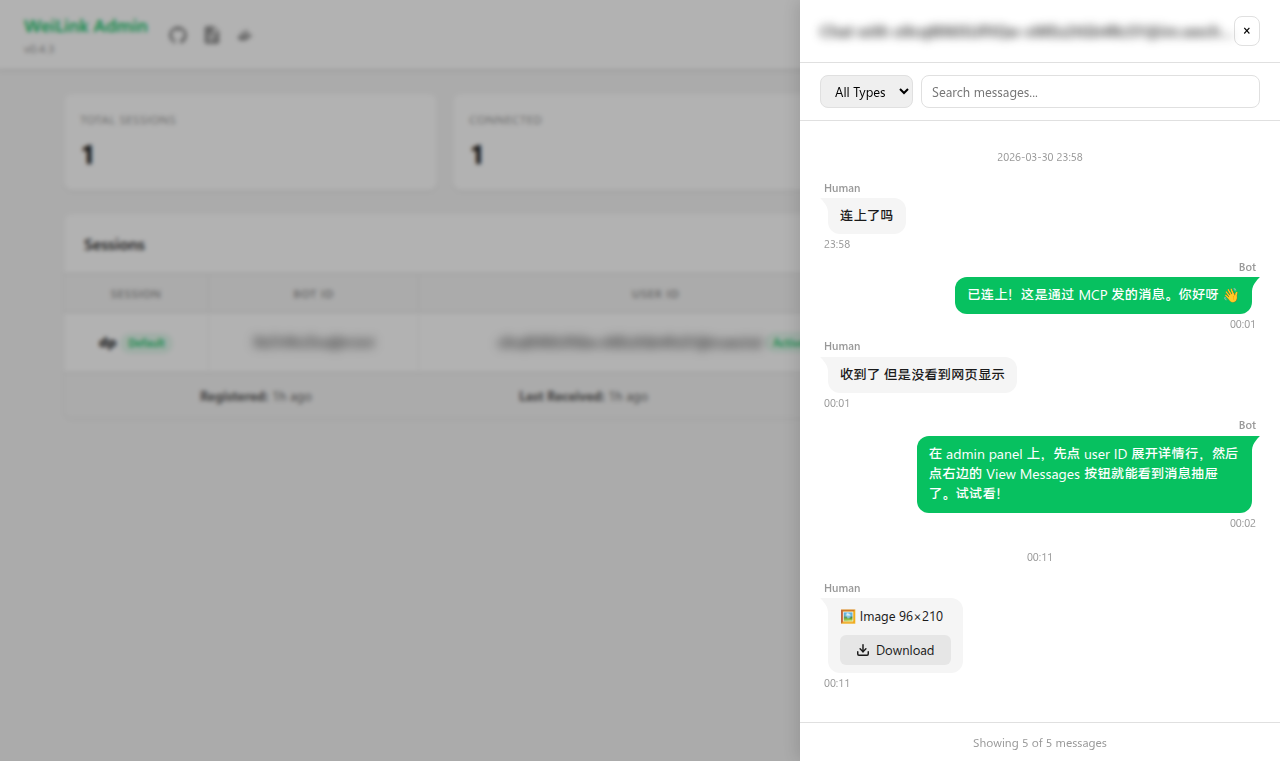
When message persistence is enabled (message_store=True), each user row shows a View Messages button. Click it to open a chat drawer with:
- WeChat-style bubbles — received messages on the left (gray), sent messages on the right (green), with sender labels and curved bubble tails
- Message types — text, image, voice, file, and video messages with type-specific icons and metadata (dimensions, duration, filename)
- Lazy media download — click the download button below any media message to fetch it from CDN on demand; no local caching
- Pagination — "Load older messages" button at the top
- Filtering — filter by message type dropdown or search text content
Message persistence is enabled by default in MCP and OpenAPI server mode. To enable it in the SDK:
Localization
The panel supports English and Chinese. It auto-detects your browser language, and you can switch manually via the language selector in the header.
Running with Servers
The admin panel can run standalone or alongside an MCP / OpenAPI server:
# Standalone
weilink admin -p 8080

# With MCP server
weilink mcp -t sse -p 8000 --admin-port 8080

# With OpenAPI server
weilink openapi -p 8000 --admin-port 8080
When using --admin-port, the admin panel shares the same process and session state with the server.
Docker
The default Docker image runs MCP SSE + admin panel together. See Docker Deployment for details.